
When your contact form says the message was sent and nothing reaches your inbox, trace it through three points where it can stop: the site never created it, the site created it but couldn't send it, or it was sent and the receiving mailbox filtered or refused it. Each point has its own test. Check them in that order before you reinstall plugins or change host.
Don't trust the thank-you message on the form. It only tells you the form accepted the submission. Even in WordPress itself, a successful result from the mail function only means the request was processed without errors; the wp_mail documentation says plainly that this doesn't mean anyone received the email.
Start with one test you can trace
Send a test submission with a subject you will recognize, such as "Form test Tuesday 14:05", from an address at a different provider than your business mailbox. A personal Gmail or Outlook address works. Write down the time. You will look for this one message at each step below.
If your form plugin or shop keeps a list of submissions or orders, have it open. That list is your best evidence.
- Send one test submission with a dated subject, from an outside address
- Is your test in the form's entries list, with the notification switched on and sent to the right address?NoYesPoint 1: the site never created the emailCheck the notification switch, the recipient and any conditions. No entry at all means the form itself failed.
- Does the email log show the test sent with no error?NoYesPoint 2: sending failedRead the error: login, port or From address. No log yet? Add one before changing anything else.
- Did it reach the inbox?NoYesPoint 3: filtered or refusedLook in spam and quarantine, and check whether the receiving server accepted it.
- In the inbox. Keep the weekly test
Point 1: the site never created the email
Rule out the form itself first. It's the cheapest point to check. Look at:
- Is the notification switched on? Many form plugins separate "save the entry" from "send a notification". A form can collect entries for months with the notification off.
- Who is it addressed to? Look for a typo, a former employee's address, or the address of whoever built the site; on an older site it may still go to the developer.
- Conditions. Some forms send a notification only when a field has a certain value. One wrong condition explains the complaint "some enquiries arrive, some don't".
- Order emails. In a shop, each order email (new order, payment received) may have its own on/off switch and recipient. Check the one you're missing, not just the first one in the list.
How to test: find your test submission in the form's entries list. If it is there and the notification settings look wrong, you've found it. If there is no entry at all, the form itself failed before any email: a script error, a caching plugin serving an old version of the page, or spam protection blocking real people. Try the form in a private browser window and on a phone.
Point 2: the site created it, but sending failed
Out of the box, WordPress sends through whatever mail setup the web server has; the wp_mail documentation notes that the function depends on the server's PHP mail settings. Whether that server is set up to deliver mail, and how well, depends on your host, and nothing on the form tells you.
Two details catch people here. WordPress sends from wordpress@yourdomain unless something sets another address, and a comment in the WordPress core code notes that some hosts block outgoing mail from that address if the mailbox doesn't exist. And if a plugin already routes mail through an SMTP server, one wrong setting (username, password, port, encryption) stops everything.
How to test: use an email log. An SMTP plugin or a sending service's plugin may have a "send test email" button and a log of what the site tried to send. Read it like this:
| What the log shows | What it means |
|---|---|
| Your test isn't in the log | The site never handed it over: go back to point 1 |
| An authentication error | Wrong username or password for the SMTP server |
| A connection timeout | The port is blocked or wrong; try another port the provider supports |
| A sender or "From" error | The From address isn't allowed by the sending service |
| Sent with no error | The problem is after the site: go to point 3 |

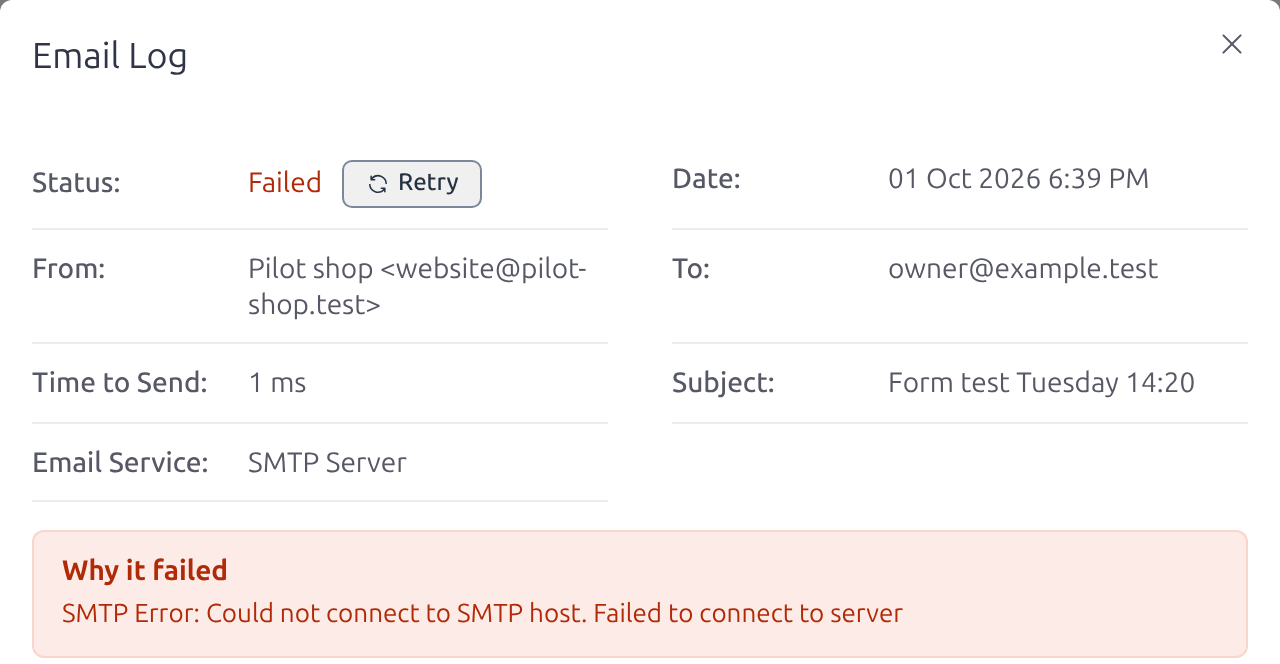
If you have no log at all, add one before changing anything else. Without it you are guessing.
Point 3: it was sent, but it didn't reach the inbox
Look in the spam or junk folder of the receiving mailbox, and in any quarantine your email provider keeps. If you use a sending service, its log shows whether the receiving server accepted the message, bounced it, or whether the service refused to send it at all.
If mail from your domain lands in spam generally, not only from the website, that is a DNS and authentication problem with your domain (SPF, DKIM, DMARC), and fixing it is a separate job. For website mail, the minimum is that the sending domain is authenticated: Google's sender guidelines require SPF or DKIM for everyone who sends to Gmail accounts.
The From address trap
Many forms are set up to send the notification "from" the visitor's own address, so that you can hit reply. If the visitor writes from someone@gmail.com, your web server sends a message claiming to come from Gmail. Google's sender guidelines tell senders not to impersonate Gmail From addresses and warn that doing so can affect delivery.
The fix takes two fields:
- From: an address on your own domain, such as website@yourbusiness.com.
- Reply-To: the visitor's address, taken from the form field.
You still reply straight to the customer, and the message is honest about where it came from. Don't use a free Gmail or Outlook address as the From address either.
Send through a sending service instead of the server
A mailbox and a sending service do different jobs. Your mailbox (Google Workspace, Microsoft 365, your host's email) is where people read and write mail. A sending service, also called an SMTP relay or transactional email service, sends the messages your website generates and keeps a log of each one. For a business that depends on enquiries, the log alone is worth it: you can see whether a given message was sent, delivered or bounced.
Brevo is one option that does both SMTP and API sending with a log. The setup details that trip people up, from Brevo's own help pages:
- Authenticate your domain first, then use a sender address on that domain.
- SMTP server: smtp-relay.brevo.com.
- Login: the SMTP login shown on Brevo's SMTP page. On newer accounts this is a generated address ending in @smtp-brevo.com, not your account email, and not the server name.
- Password: an SMTP key, not your account password and not an API key. The key is shown only once when you create it; if you didn't save it, generate a new one.
- Port: 587, 465 or 2525. Leave encryption empty unless you use 465.
- Never put the @smtp-brevo.com login in the From field. It's an account identifier, not a sender address.
Once it runs, the transactional logs show each message with events such as sent, delivered or blocked, and you can filter by recipient to find one lost enquiry. Two limits matter. On a new account, transactional sending needs a separate activation from Brevo before anything goes out, so request it before you switch the site over. And the Free plan has a daily sending limit that covers campaigns as well as website emails, so a newsletter sent from the same account uses up the same allowance.
When it isn't needed: if your host or your mailbox provider already gives you authenticated SMTP for your domain and you can see a sending log, use that. What you need is an authenticated sender and a log, not a particular vendor.
Protect the form
Bots filling in your form cause two problems: your inbox fills with junk, so real enquiries get missed, and a sending service can suspend your account when a flood of fake submissions goes out through it. Brevo, for example, may suspend sending if an unprotected form is attacked. Add the spam protection your form plugin offers (a hidden honeypot field or a CAPTCHA), then send yourself another test, because overly strict protection can block real visitors too.
A weekly test
A broken form doesn't announce itself; you notice when a customer phones to ask why nobody replied. A short routine catches it sooner:
- Once a week, submit the contact form from an outside address with a dated subject.
- If you run a shop, place a test order using your payment provider's test mode, or a low-value order you refund.
- Check that each email arrived in the inbox, not in spam, within a few minutes.
- Look at the sending log for errors since last week.
- Once a month, compare the form's entries list with the emails you received.
Also run the test after every plugin update, password change, DNS change or host move. The hosting move guide includes a contact-form test before switching DNS for this reason.
One more cheap safeguard: send notifications to two addresses, for example the owner and a shared office inbox. When one person leaves or one mailbox fills up, enquiries still reach someone.